


Bleed
Artwork intended to print to the edge should extend beyond the final trim so normal finishing tolerances do not leave an unintended white edge.
Variable data printing, often called VDP, allows information within a printed design to change from one piece to the next. Names, addresses, promotion codes and other fields can be personalized while the main design remains consistent.

Organize the information that will change from piece to piece into clearly labeled database columns.
Create the printed piece and identify where personalized information will appear.
Connect the database to the design so each printed piece receives the correct variable information.
Variable data printing is a digital printing process in which selected elements of a design can change from one printed piece to the next.
Instead of producing thousands of completely identical pieces, a variable data project can use information from a database to personalize individual copies. The changing information might include a recipient's name, mailing address, account information, promotion code or another field associated with that record.
The same base design can therefore be used across an entire print run while selected text or other content changes automatically from record to record.
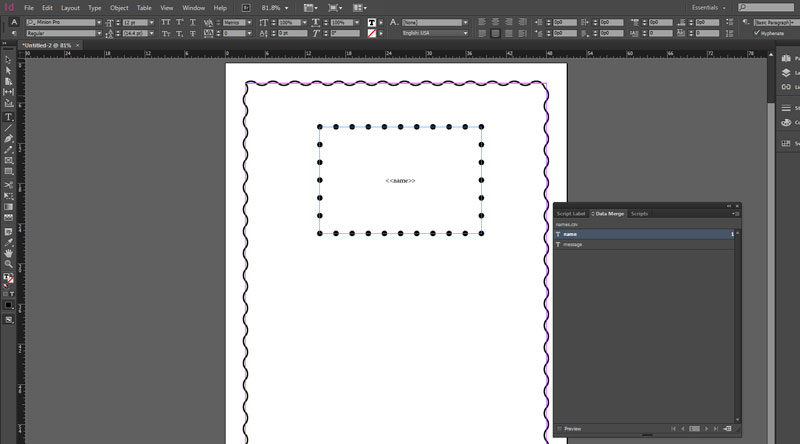
A successful variable data project depends on the database, the design and the merge process working together correctly.
Gather the names, addresses, codes or other information that will vary between printed pieces.
Place each type of variable information into its own clearly labeled spreadsheet column.
Export the completed spreadsheet into a format such as CSV that can be used with the variable data workflow.
Build the printed piece normally and identify the locations where personalized fields will appear.
Use InDesign Data Merge to associate the database columns with the corresponding locations in the design.
Preview multiple records, check variable content carefully and generate the merged document for final output.
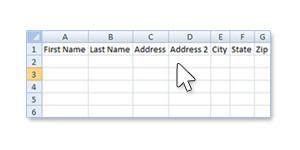
The database controls the information that will change throughout the print run.
Start with a spreadsheet and place each category of variable information into its own column. The column headings become the field names that can later be selected when the database is connected to the design.
For a mailing project, common columns might include:
Each spreadsheet column represents one type of information, while each row represents a single recipient or personalized printed piece.
Good database structure reduces errors and makes the Data Merge process easier to manage.
Descriptive headings make it easier to identify the correct variable field inside InDesign.
Each record should follow the same structure so the merge pulls the correct information into each field.
Check for missing or unintended blank information before exporting the database.
Keep the final data source focused on fields actually required by the printed project.
Review names, capitalization, ZIP codes and other customer information before the merge begins.
Once the database is complete, save or export it as a comma-separated values file for use in the Data Merge process.
The base design remains consistent while selected fields are replaced with information from the database.
Build the printed piece in Adobe InDesign just as you would any other project. Create text frames or other appropriate areas where variable information will appear.
Typical variable fields may include:
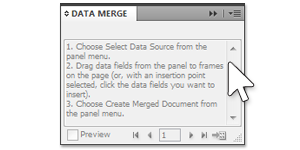
Once the artwork and CSV database are ready, Adobe InDesign's Data Merge panel connects the variable fields to the design.
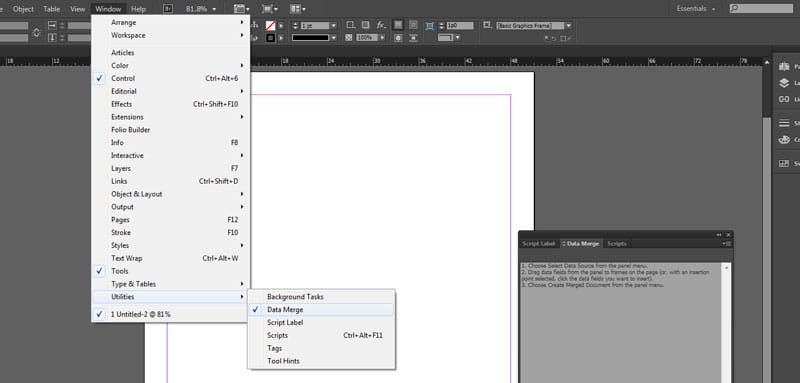
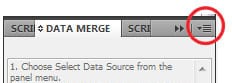
Open the Data Merge panel by choosing Window → Utilities → Data Merge. From the panel menu, choose Select Data Source and select the prepared CSV file.
The spreadsheet column names will then appear as available fields inside the Data Merge panel.
The fields from the database are placed into the artwork where each piece needs personalized information.
Open the Data Merge panel and connect the prepared CSV database to the InDesign document.
Select the appropriate field name from the Data Merge panel, such as First Name or Address.
Place the selected variable field into the corresponding text frame or location in the layout.
Apply the correct font, size, alignment and paragraph formatting just as you would with normal InDesign text.
Turn on Preview and move through several records to check how different names and other information fit the design.
When the setup has been reviewed, generate the merged document containing the personalized records.
Previewing the data is one of the most important steps in a variable data workflow.
A field that looks correct with one record may not work correctly with another. Longer names, addresses and other variable information can wrap differently or exceed the available frame.
Move through multiple records before creating the final merged document and pay particular attention to unusually long or short values.
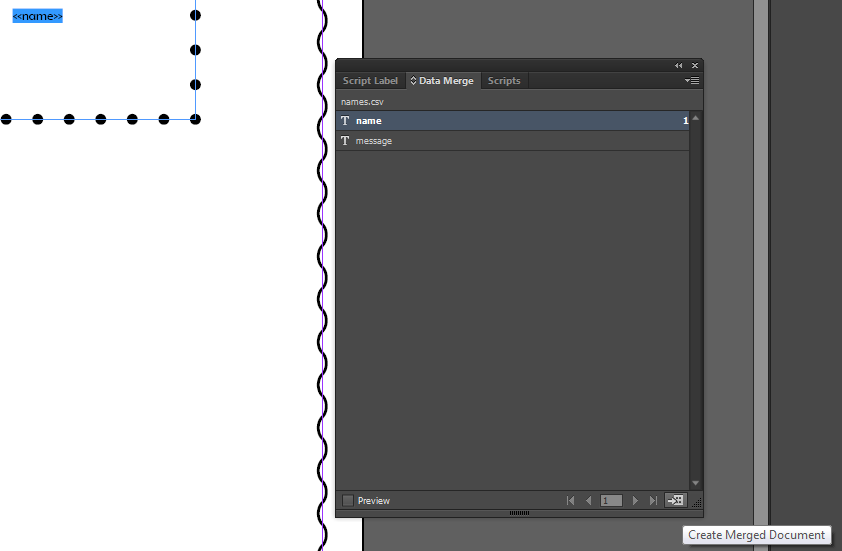
After the variable fields have been placed and the records have been previewed, use the Data Merge panel to create the final merged document.
A variable field may fit perfectly for one record and overflow for another.
Allow enough room for long names, addresses and other variable information. If a text frame is too small, content can become cut off or wrap unexpectedly.
Do not check only the first record in the database. Preview a range of records so you can see how the layout behaves with both short and long values.
Make sure the typography and line breaks work across different record lengths.
Variable text needs enough room to expand without colliding with nearby design elements.
Check a range of database entries before creating the final merged document.
Make sure no variable content is hidden because the text frame is too small.
The merge process handles personalization, but the underlying document still needs to follow normal commercial printing requirements.
Artwork intended to print to the edge should extend beyond the final trim so normal finishing tolerances do not leave an unintended white edge.
Photographs and other raster graphics should have enough resolution at their final printed size to reproduce cleanly.
Prepare colors appropriately for commercial printing and review the project for any special color requirements before final output.
Each variable field has a consistent and understandable column name.
Information appears in the appropriate column for every database record.
The exported database contains the correct records and fields required for the project.
Each database field is connected to the intended location in the design.
Text frames allow enough room for longer names and other variable information.
The design has been checked with different entries from the database.
Non-variable text, graphics and other elements are also ready for production.
Size, paper, quantity, finishing and any mailing requirements have been established.
Variable data printing is a printing process in which selected elements such as names, addresses, promotion codes or other information can change from one printed piece to another while the main design remains consistent.
Common variable fields include names, mailing addresses, promotion codes and other information stored in a structured database and connected to corresponding fields in the artwork.
Each type of variable information should be placed in its own spreadsheet column with a clear column heading. Each row then contains the information associated with one record.
A CSV, or comma-separated values, file exported from a spreadsheet application such as Microsoft Excel can be used as the data source for an InDesign Data Merge project.
Open the InDesign document and choose Window, then Utilities, then Data Merge. The Data Merge panel can then be used to select the database and place variable fields in the design.
Variable information can have different lengths. A frame that works for a short name may cause a longer name to wrap or become cut off, so multiple records should be previewed before creating the final merged document.
Yes. Variable data projects can be submitted to MMPrint for a custom quote based on the printed product, database, quantity and project requirements.
Tell us about the printed piece, quantity, variable fields and database you plan to use. We can review the project and provide a custom printing quote.